I-visualize ang mga Circuit
Mga bersyon ng package
Ang code sa pahinang ito ay ginawa gamit ang mga sumusunod na kinakailangan. Inirerekomenda naming gamitin ang mga bersyong ito o mas bago.
qiskit[all]~=2.5.2
Kadalasang kapaki-pakinabang na makita ang mga circuit na iyong ginagawa. Gamitin ang mga sumusunod na opsyon para ipakita ang mga Qiskit circuit.
# Added by doQumentation — installs the packages this notebook needs if they are missing
import importlib.util

_needed = {"qiskit": "qiskit"}
_missing = [pip for module, pip in _needed.items()
            if importlib.util.find_spec(module) is None]
# One at a time, so a package that fails to install does not block the others
for _pip in _missing:
    %pip install -q {_pip}
if not _missing:
    print("\u2713 All required packages are installed")
from qiskit import QuantumCircuit
Gumuhit ng quantum circuit
Sinusuportahan ng QuantumCircuit class ang pagguhit ng mga circuit sa pamamagitan ng draw() method, o sa pag-print ng circuit object. Sa default, pareho silang nagre-render ng ASCII art na bersyon ng circuit diagram.
Tandaan na ang print ay nagbabalik ng None ngunit may side effect na nagpi-print ng diagram, samantalang ang QuantumCircuit.draw ay nagbabalik ng diagram nang walang mga side effect. Dahil ang mga Jupyter notebook ay nagpapakita ng output ng huling linya ng bawat cell, tila magkapareho ang epekto nila.
# Build a quantum circuit
circuit = QuantumCircuit(3, 3)
circuit.x(1)
circuit.h(range(3))
circuit.cx(0, 1)
circuit.measure(range(3), range(3));
print(circuit)
┌───┐          ┌─┐
q_0: ┤ H ├───────■──┤M├───
     ├───┤┌───┐┌─┴─┐└╥┘┌─┐
q_1: ┤ X ├┤ H ├┤ X ├─╫─┤M├
     ├───┤└┬─┬┘└───┘ ║ └╥┘
q_2: ┤ H ├─┤M├───────╫──╫─
     └───┘ └╥┘       ║  ║
c: 3/═══════╩════════╩══╩═
            2        0  1
circuit.draw()
┌───┐          ┌─┐
q_0: ┤ H ├───────■──┤M├───
     ├───┤┌───┐┌─┴─┐└╥┘┌─┐
q_1: ┤ X ├┤ H ├┤ X ├─╫─┤M├
     ├───┤└┬─┬┘└───┘ ║ └╥┘
q_2: ┤ H ├─┤M├───────╫──╫─
     └───┘ └╥┘       ║  ║
c: 3/═══════╩════════╩══╩═
            2        0  1
Mga alternatibong renderer
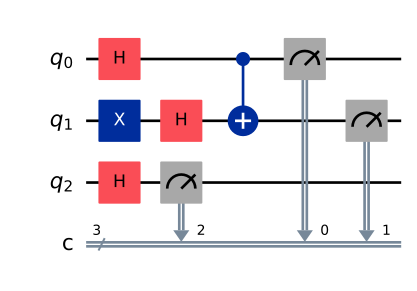
Ang text output ay kapaki-pakinabang para mabilis na makita ang output habang nagde-develop ng circuit, ngunit hindi ito nagbibigay ng pinaka-flexible na opsyon. Mayroong dalawang alternatibong output renderer para sa quantum circuit. Gumagamit ang isa ng Matplotlib at ang isa ay gumagamit ng LaTeX. Ang LaTeX renderer ay nangangailangan ng qcircuit package. Piliin ang mga renderer na ito sa pamamagitan ng pagtatakda ng "output" argument sa mga string na mpl at latex.
Ang mga OSX user ay makakakuha ng kinakailangang mga LaTeX package sa pamamagitan ng mactex package.
# Matplotlib drawing
circuit.draw(output="mpl")
# Latex drawing
circuit.draw(output="latex")

I-save ang output
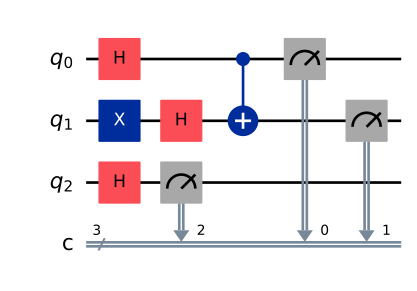
Ang pagguhit ng malaking circuit nang inline sa isang Jupyter notebook ay maaaring maging mabagal o hindi mabasa. Maaari mong i-save ang diagram direkta sa isang file, pagkatapos ay buksan ito sa isang image viewer at mag-zoom in kung kinakailangan.
# Save as an image using the Matplotlib drawer
circuit.draw(output="mpl", filename="circuit-mpl.jpeg")
# Or save a LaTeX rendering
circuit.draw(output="latex", filename="circuit-latex.pdf")
Kontrolin ang pagguhit ng circuit
Sa default, ang draw() method ay nagbabalik ng rendered na imahe bilang isang object at hindi nagmo-output ng anuman. Ang eksaktong class na ibinabalik ay depende sa output na tinukoy: ang 'text' (ang default) ay nagbabalik ng TextDrawer object, ang 'mpl' ay nagbabalik ng matplotlib.Figure object, at ang latex ay nagbabalik ng PIL.Image object. Naiintindihan ng mga Jupyter notebook ang mga return type na ito at nire-render ang mga ito nang maayos, ngunit kapag tumatakbo sa labas ng Jupyter, ang mga imahe ay hindi awtomatikong ipapakita.
Ang draw() method ay may mga opsyonal na argumento para ipakita o i-save ang output. Kapag tinukoy, ang filename kwarg ay tumatanggap ng path kung saan nito ise-save ang rendered output. Bilang kahalili, kung gumagamit ka ng mpl o latex na output, maaari mong gamitin ang interactive kwarg para buksan ang imahe sa isang bagong window (hindi ito palaging gumagana mula sa loob ng notebook).
I-customize ang output
Depende sa output, mayroon ding mga opsyon para i-customize ang circuit diagram.
I-disable ang plot barriers at baligtarin ang bit order
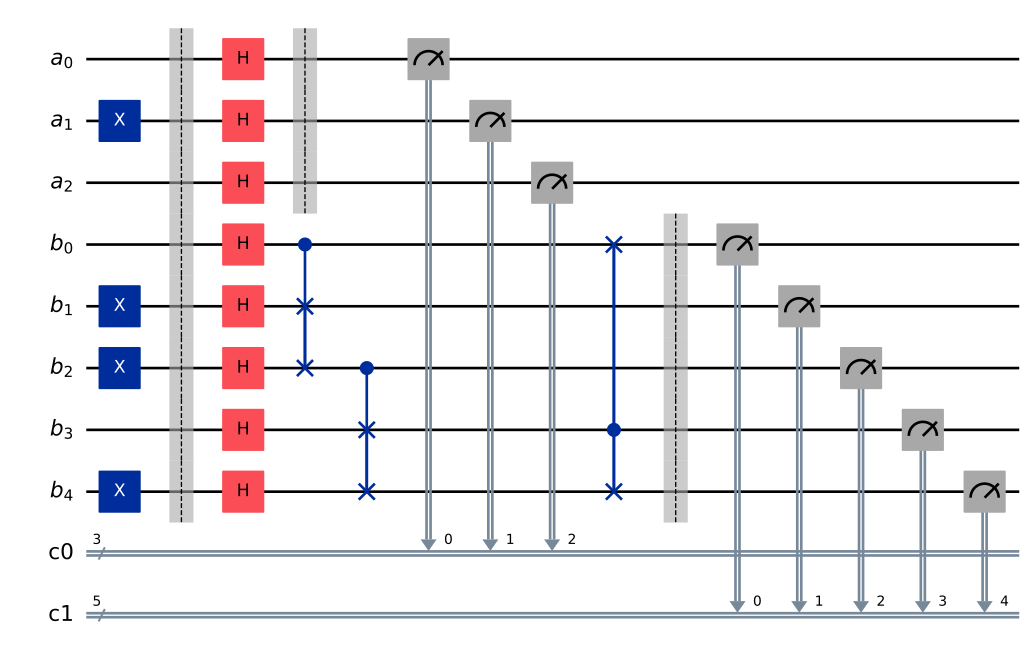
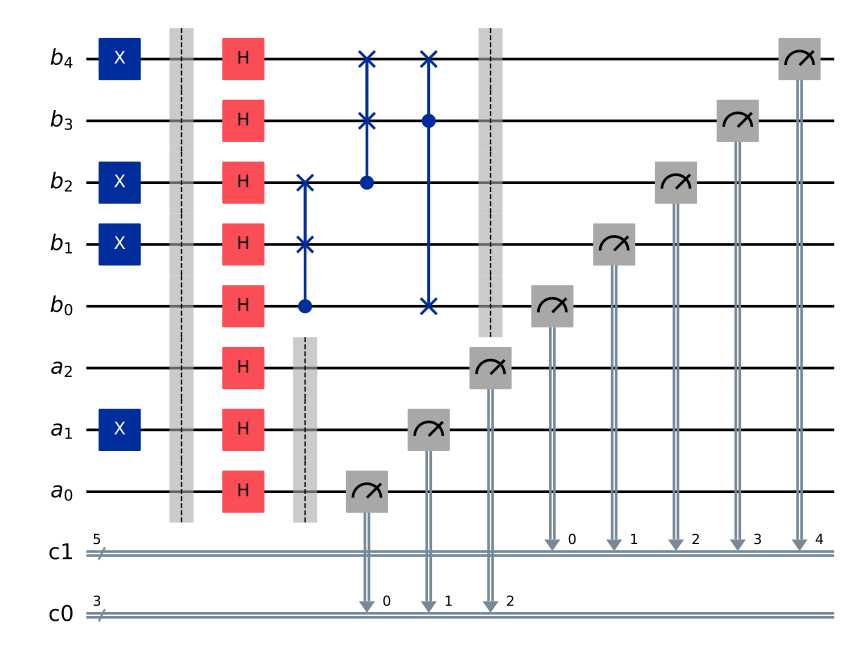
Ang unang dalawang opsyon ay ibinabahagi sa lahat ng tatlong Backend. Pinapayagan ka nilang i-configure ang parehong bit order at kung iguguhit mo o hindi ang mga barrier. Maaaring itakda ang mga ito sa pamamagitan ng reverse_bits kwarg at plot_barriers kwarg, ayon sa pagkakasunod. Ang mga sumusunod na halimbawa ay gumagana sa anumang output renderer; ginagamit dito ang mpl para maikli.
from qiskit import QuantumRegister, ClassicalRegister

# Draw a new circuit with barriers and more registers
q_a = QuantumRegister(3, name="a")
q_b = QuantumRegister(5, name="b")
c_a = ClassicalRegister(3)
c_b = ClassicalRegister(5)

circuit = QuantumCircuit(q_a, q_b, c_a, c_b)
circuit.x(q_a[1])
circuit.x(q_b[1])
circuit.x(q_b[2])
circuit.x(q_b[4])
circuit.barrier()
circuit.h(q_a)
circuit.barrier(q_a)
circuit.h(q_b)
circuit.cswap(q_b[0], q_b[1], q_b[2])
circuit.cswap(q_b[2], q_b[3], q_b[4])
circuit.cswap(q_b[3], q_b[4], q_b[0])
circuit.barrier(q_b)
circuit.measure(q_a, c_a)
circuit.measure(q_b, c_b);
# Draw the circuit
circuit.draw(output="mpl")
# Draw the circuit with reversed bit order
circuit.draw(output="mpl", reverse_bits=True)
# Draw the circuit without barriers
circuit.draw(output="mpl", plot_barriers=False)
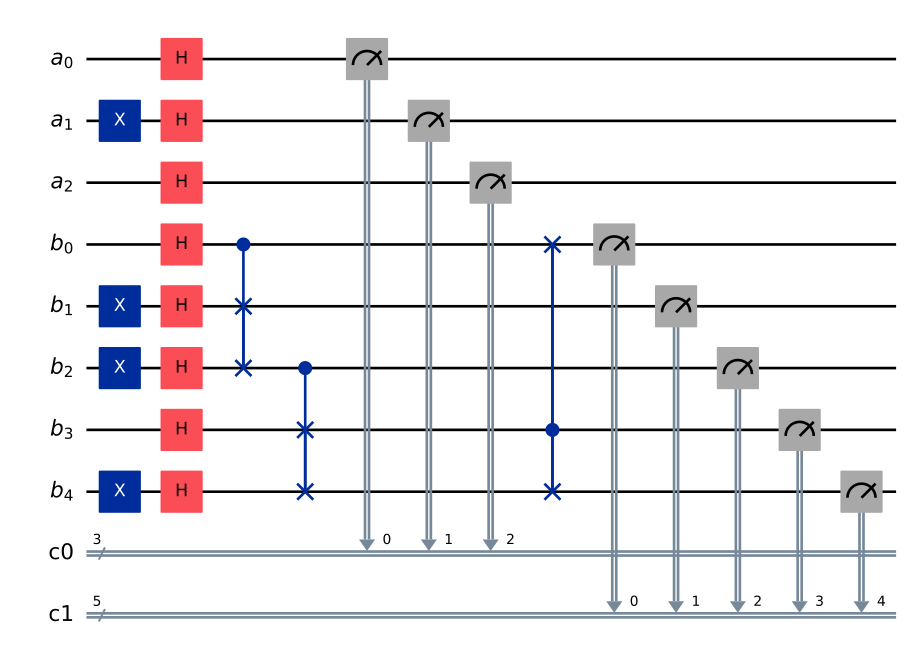
Mga customization na tukoy sa renderer
Ang ilang available na opsyon sa pag-customize ay tukoy sa isang renderer.
Ang fold argument ay nagtatakda ng maximum na lapad para sa output. Sa text renderer, itinatakda nito ang haba ng mga linya ng diagram bago ito ma-wrap sa susunod na linya. Kapag gumagamit ng 'mpl' renderer, ito ang bilang ng mga (visual) layer bago mag-fold sa susunod na linya.
Ang mpl renderer ay may style kwarg, na nagbabago ng mga kulay at mga outline. Tingnan ang API documentation para sa higit pang detalye.
Ang scale na opsyon ay nag-i-scale ng output ng mpl at latex renderer.
circuit = QuantumCircuit(1)
for _ in range(10):
    circuit.h(0)
# limit line length to 40 characters
circuit.draw(output="text", fold=40)
┌───┐┌───┐┌───┐┌───┐┌───┐┌───┐┌───┐»
q: ┤ H ├┤ H ├┤ H ├┤ H ├┤ H ├┤ H ├┤ H ├»
   └───┘└───┘└───┘└───┘└───┘└───┘└───┘»
«   ┌───┐┌───┐┌───┐
«q: ┤ H ├┤ H ├┤ H ├
«   └───┘└───┘└───┘
# Change the background color in mpl

style = {"backgroundcolor": "lightgreen"}
circuit.draw(output="mpl", style=style)

# Scale the mpl output to 1/2 the normal size
circuit.draw(output="mpl", scale=0.5)

Standalone na function para sa pagguhit ng circuit
Kung mayroon kang application kung saan mas gusto mong gumuhit ng circuit gamit ang isang self-contained na function sa halip na bilang method ng isang circuit object, maaari mong direktang gamitin ang circuit_drawer() function, na bahagi ng pampublikong stable interface mula sa qiskit.visualization. Ang function ay gumaganap nang kapareho ng circuit.draw() method, maliban na tumatanggap ito ng circuit object bilang isang kinakailangang argumento.
from qiskit.visualization import circuit_drawer

circuit_drawer(circuit, output="mpl", plot_barriers=False)

Mga susunod na hakbang
- Tingnan ang isang halimbawa ng circuit visualization sa tutorial na Grover's Algorithm.
- I-visualize ang mga simpleng circuit gamit ang IBM Quantum Composer.
- I-visualize ang circuit timing.
- Suriin ang Qiskit visualizations API documentation.